How Linking Works in BPS Insights
A plain-language guide for clients and clinicians · Proof of concept at poc.bpsinsights.com · October 15, 2026
Linking lets a client share some of their BPS Insights entries with their clinician. The client decides what’s shared, and nobody else can read it, not even BPS Insights.
The short version
- The clinician makes an invite code.
- The client enters the code in the Care tab.
- Both check that their safety numbers match.
- The client picks what to share and gives consent.
- The clinician sees only those categories. The client can stop at any time.
The picture
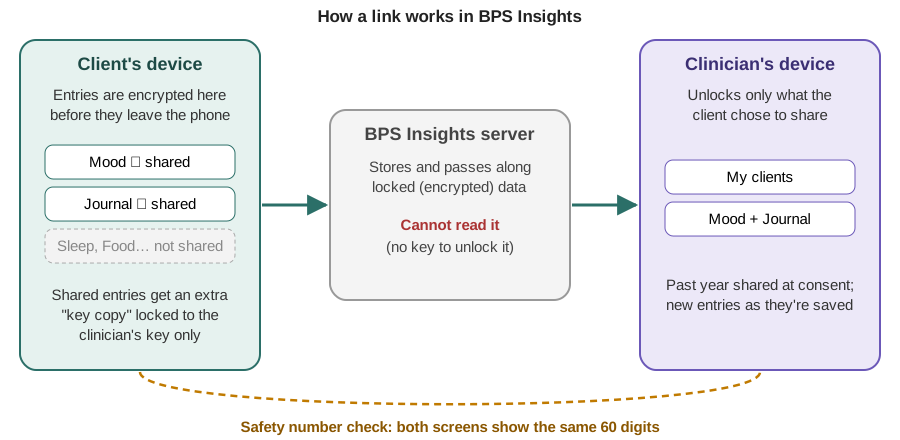
- The client’s entries are locked (encrypted) on their phone before they’re sent anywhere.
- When the client shares a category, the app makes an extra key copy for each entry in it. Only the clinician’s key can open that copy.
- The server stores and passes along locked data. It has no key, so it can’t read it.
- The safety number check makes sure the clinician’s key really belongs to the clinician, and not to an impostor.
Step by step, with screenshots
Screenshots are from the POC with test accounts. Some are in dark mode and some in light mode; the steps are the same either way.
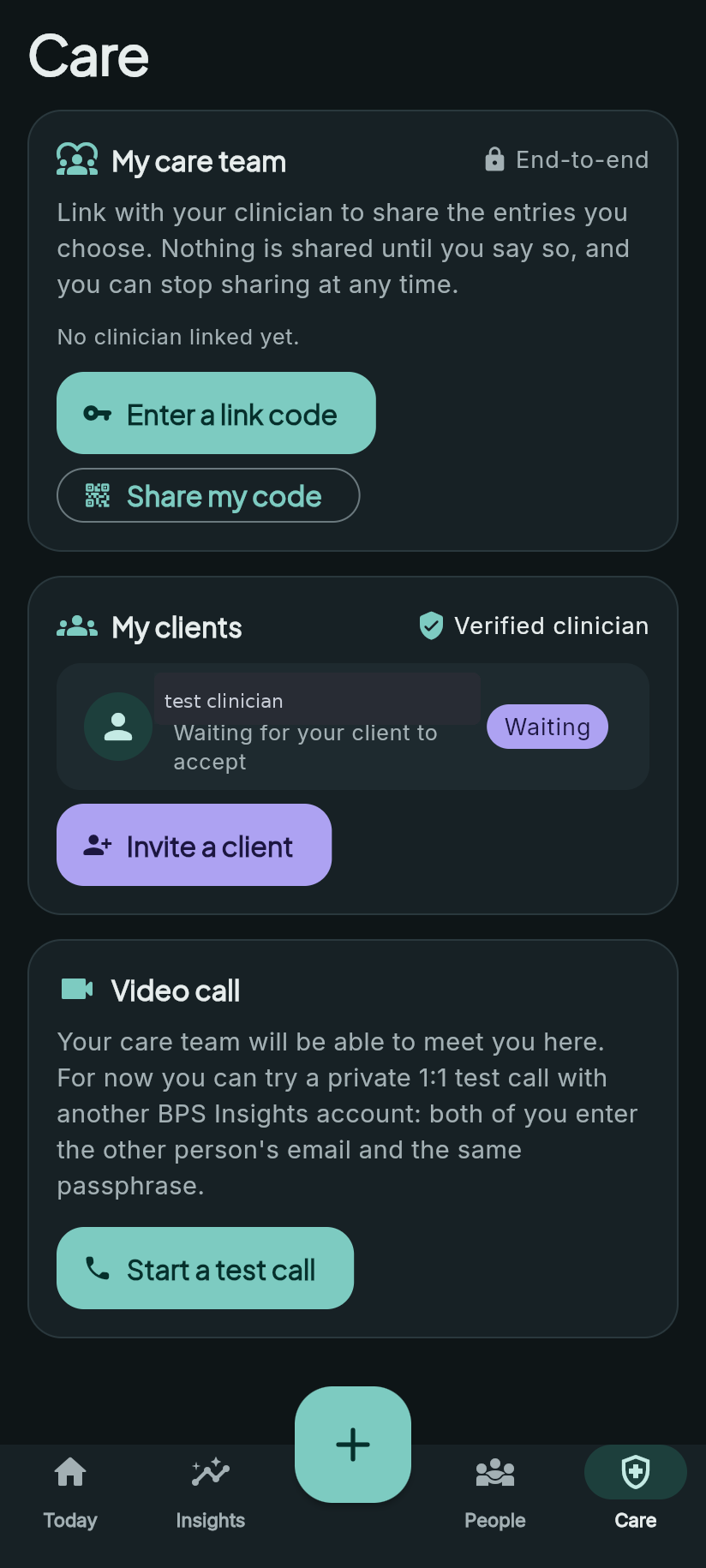
Step 1: The clinician creates an invite code
In Care → My clients, the clinician taps Invite a client. The app shows a 12-character code. It works once and expires in 7 days.
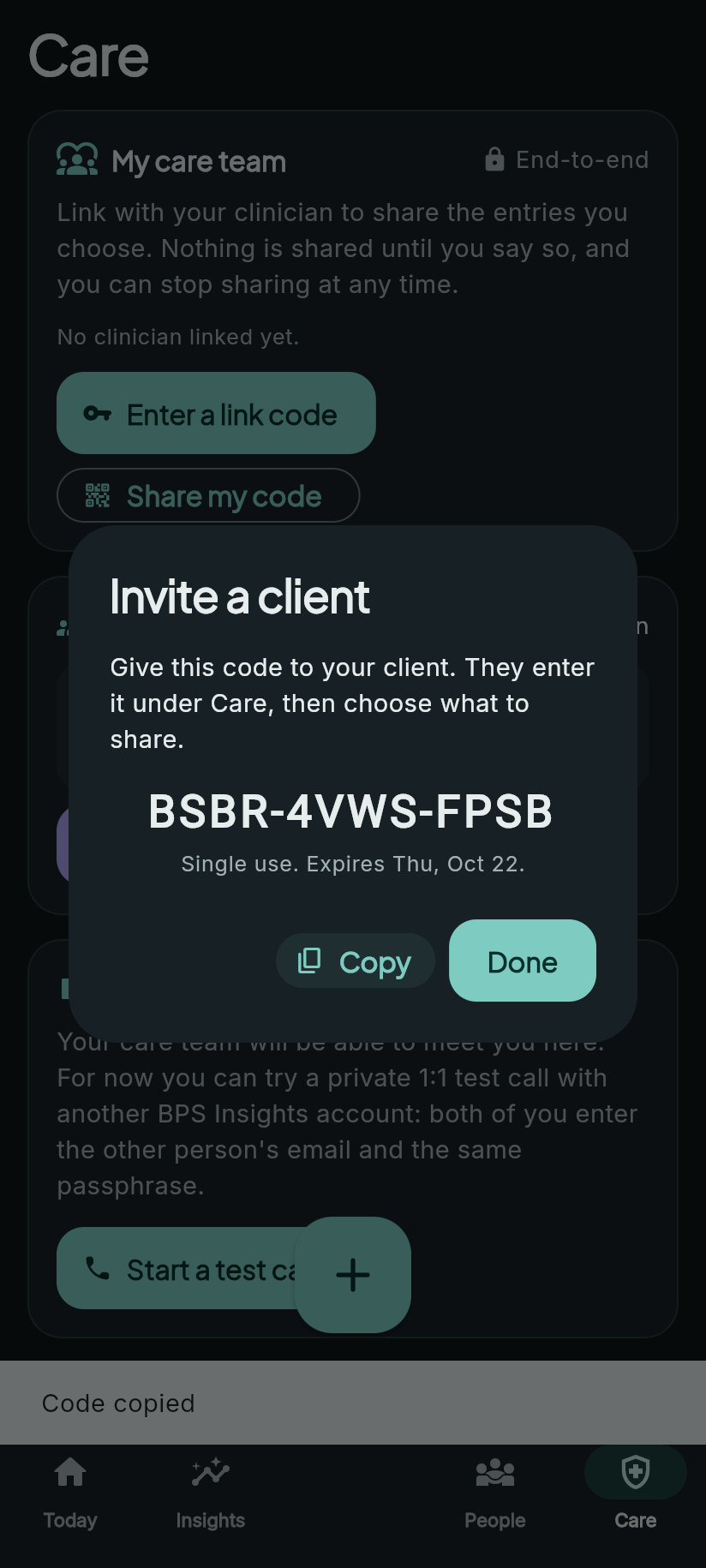
Step 2: The client enters the code
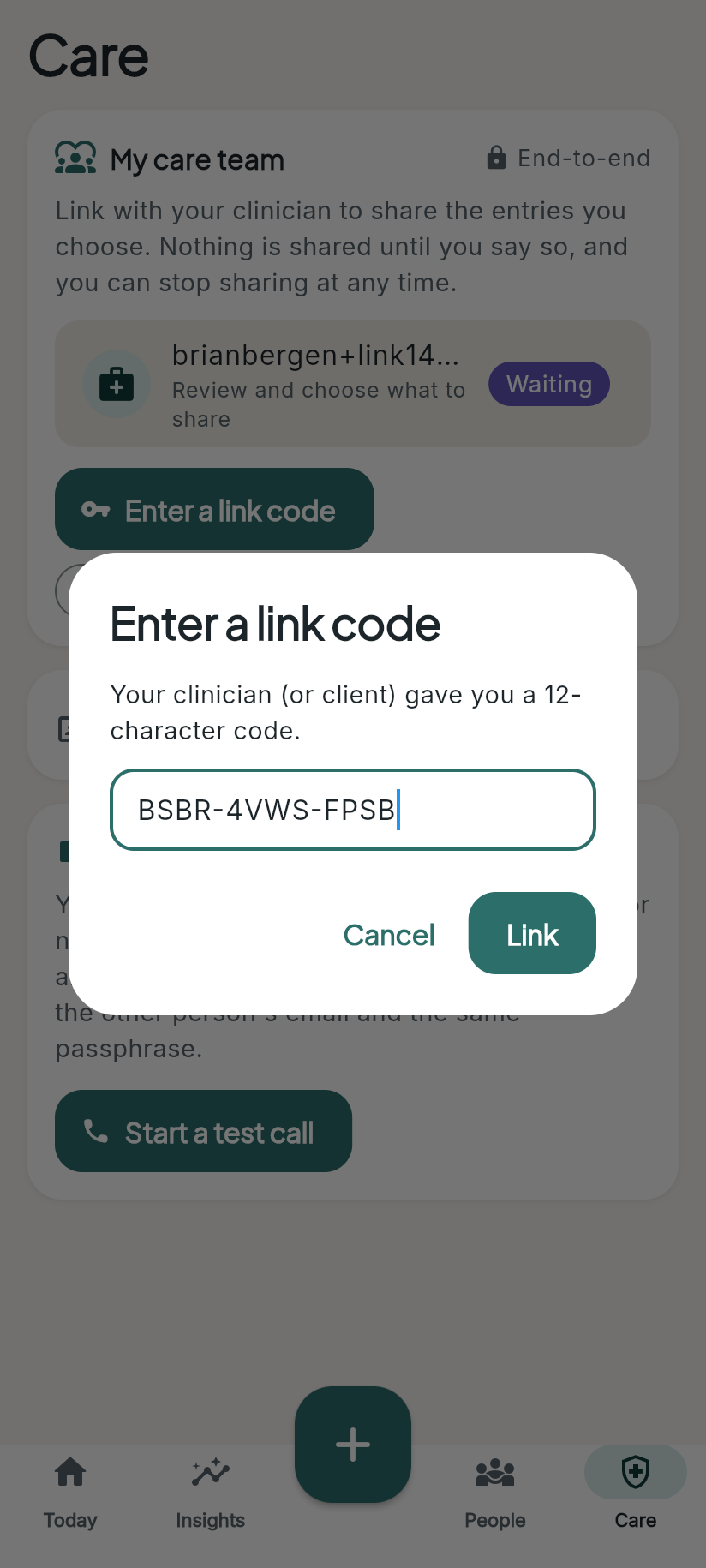
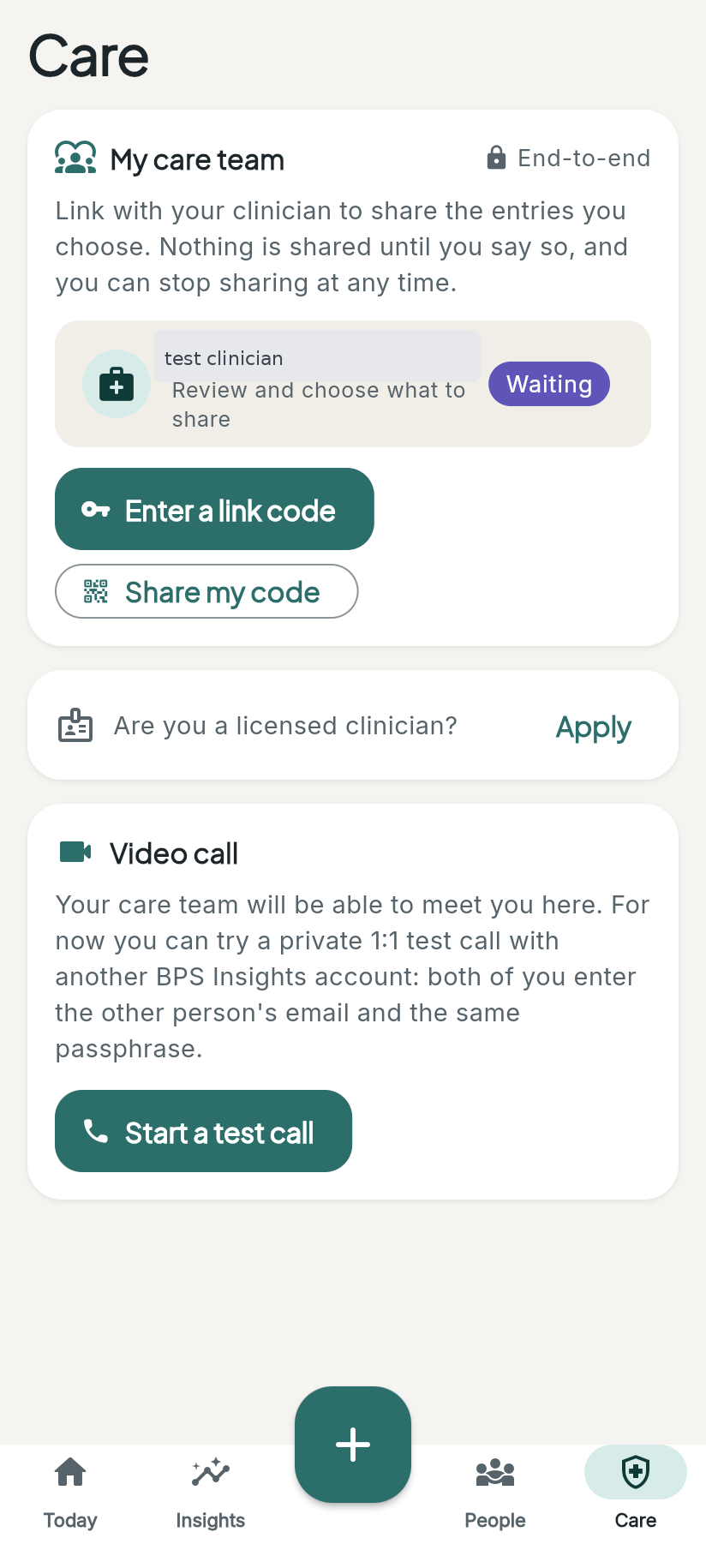
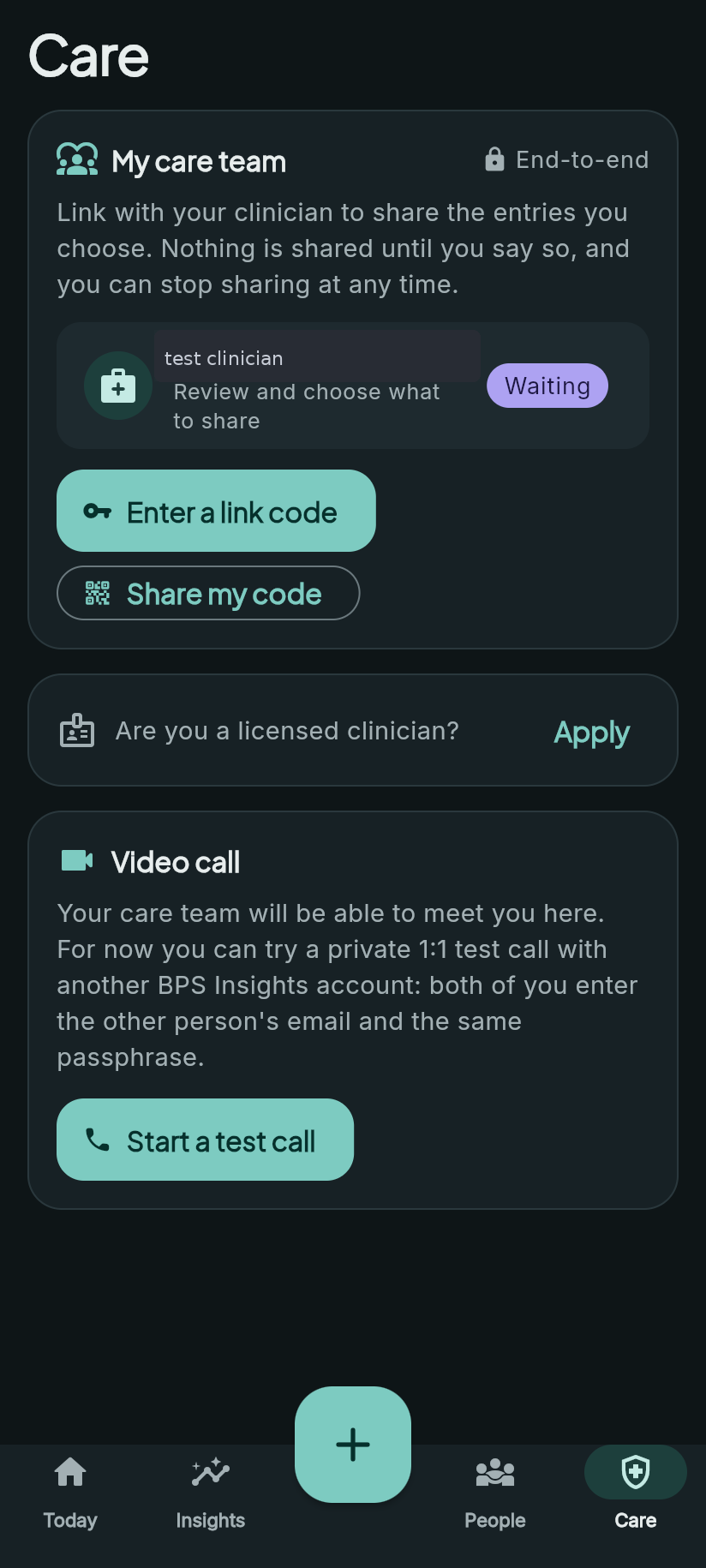
The client opens Care → Enter a link code, types the code and taps Link. The clinician now shows up on the client’s Care tab as Waiting (“Review and choose what to share”).
Step 3: Both check the safety number
Each side opens the link and sees a safety number: 60 digits in 12 groups of 5, plus a QR code. The digits must be identical on both phones. Compare them in person, or read them aloud on a video call. Then each person picks how they compared them under Did the numbers match?
If any digit is different, don’t continue. Decline the link and contact the other person another way.
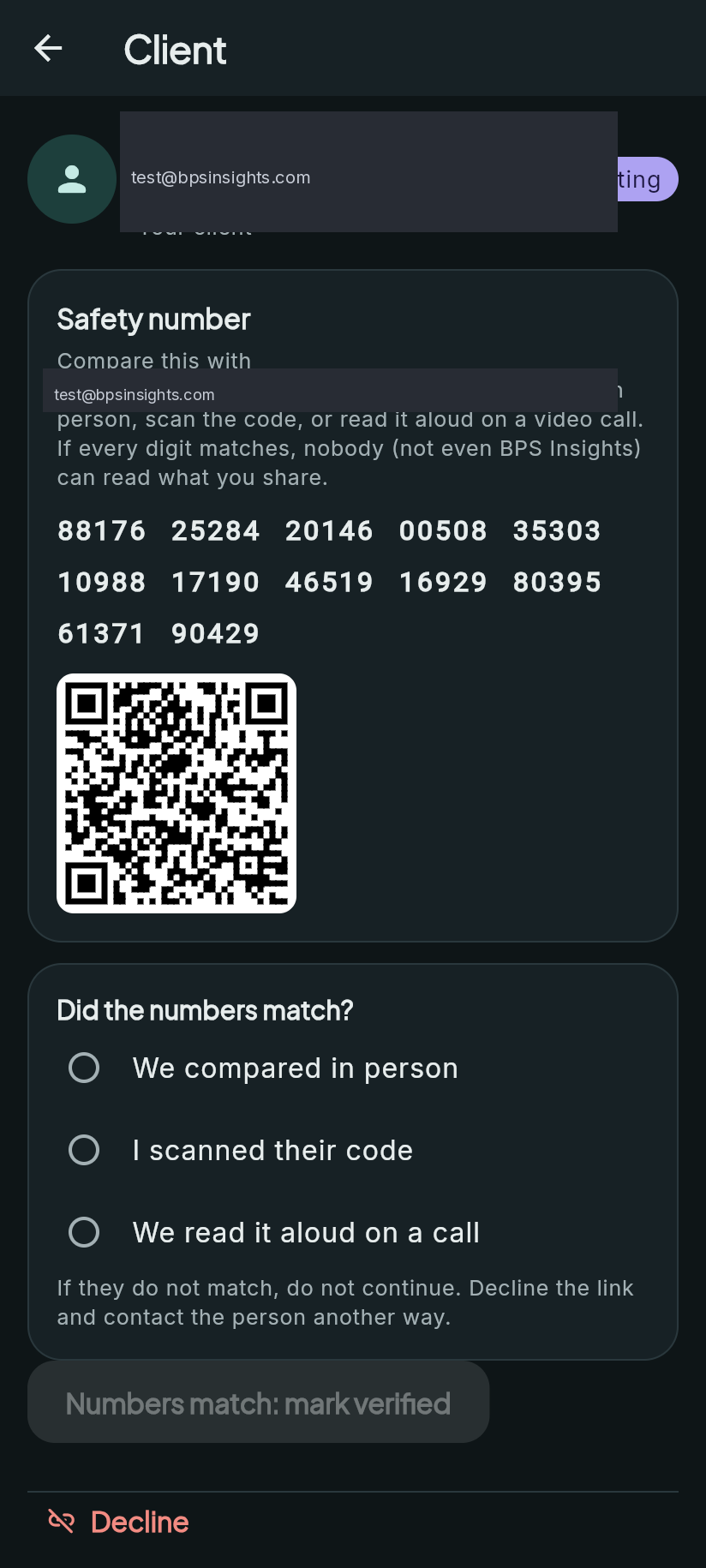
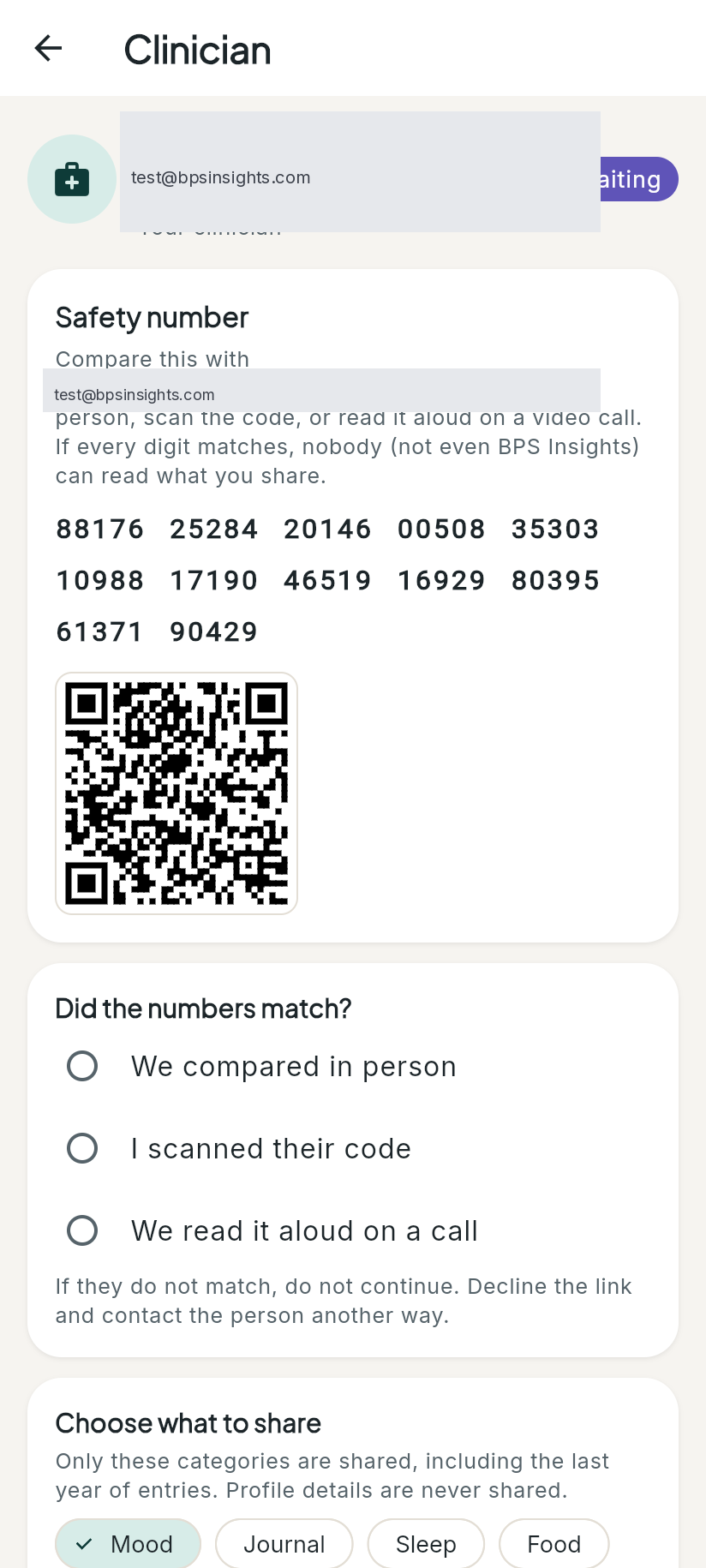
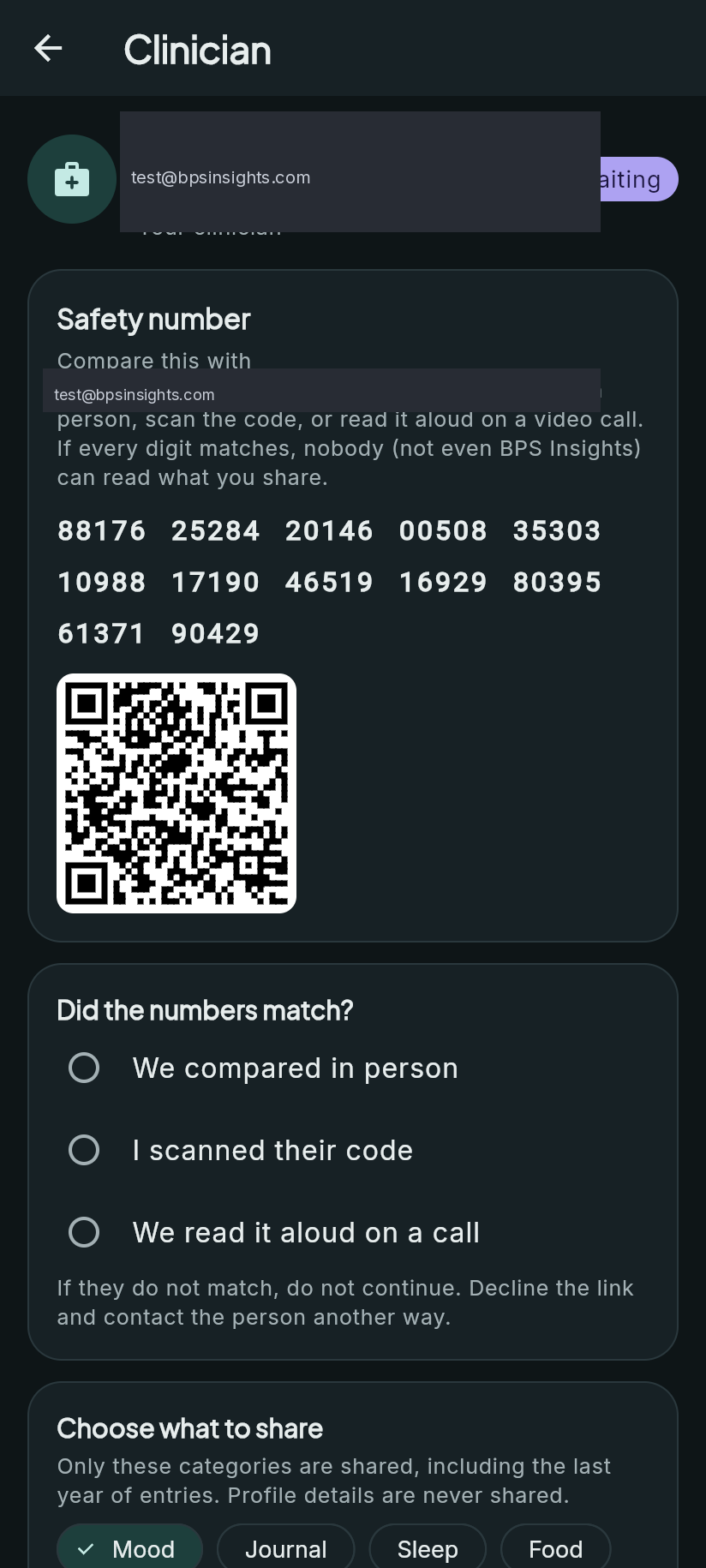
The app can show a QR code, but it can’t scan one yet. Compare the digits for now.
Step 4: The client chooses what to share and consents
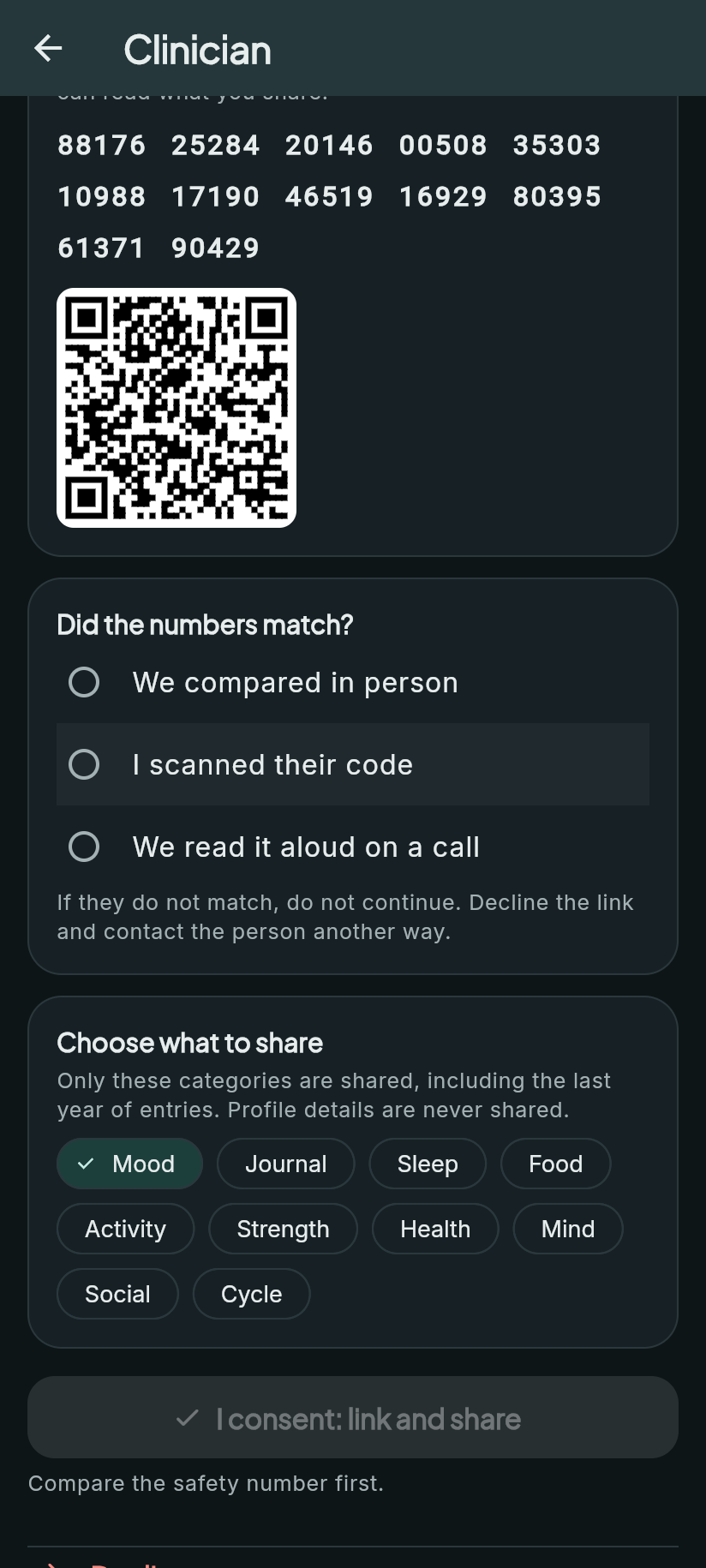
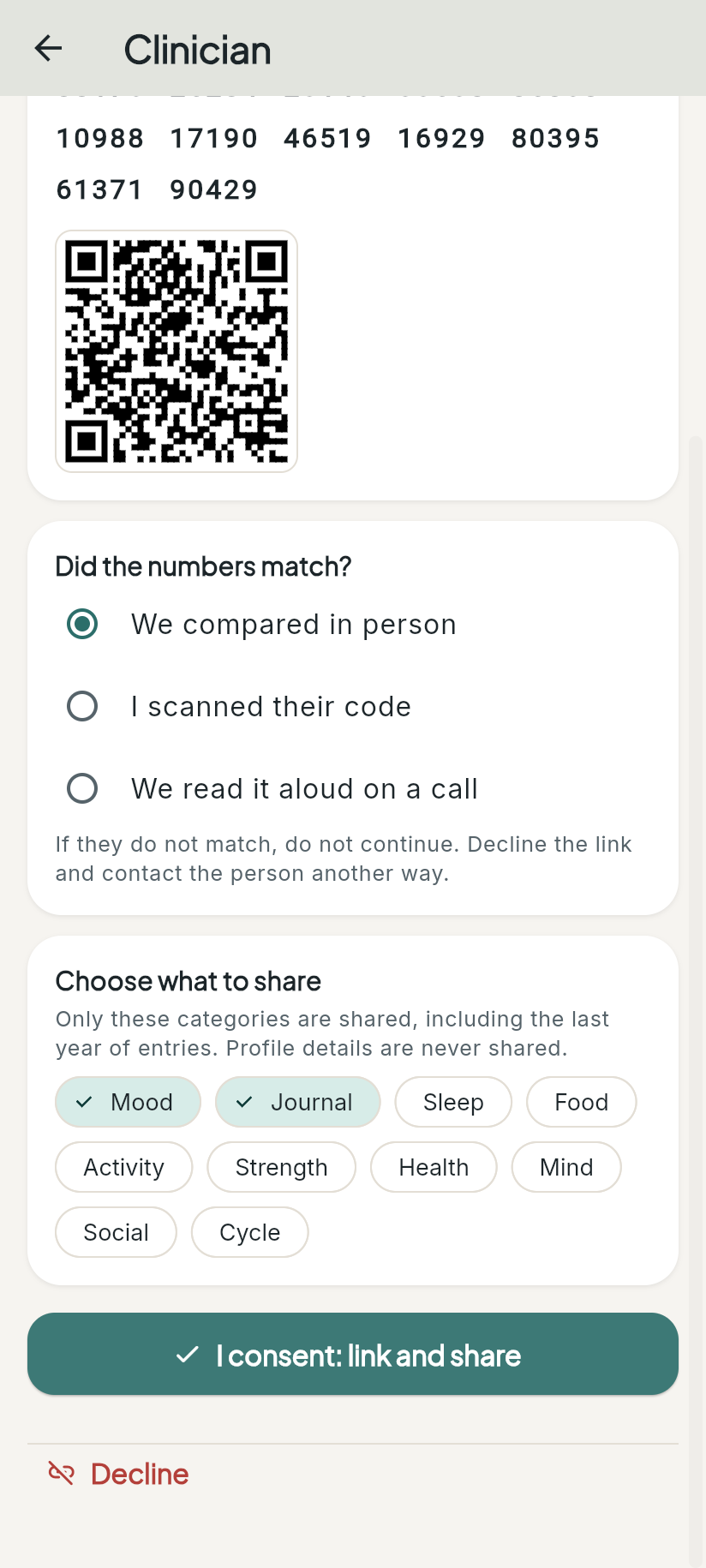
Under Choose what to share, the client taps the categories they want: Mood, Journal, Sleep, Food, Activity, Strength, Health, Mind, Social or Cycle. Profile details are never shared. Then they tap I consent: link and share.
The consent button stays off until the client has compared the safety number (“Compare the safety number first”) and picked at least one category.
Step 5: Sharing starts
- The past year of entries in the chosen categories is shared, locked to the clinician’s key.
- New entries in those categories are shared as they’re saved.
- The clinician’s My clients list shows the client and what they share. The clinician reads the entries under Shared entries.
[Placeholder: screenshots of the active link (“Sharing Mood, Journal”) and the clinician’s Shared entries page. Not yet captured on the POC.]
Step 6: Changing or stopping
- The client can add or remove categories at any time. Removing one stops sharing it, including past entries.
- The client can tap Stop sharing and unlink at any time. The clinician loses access to everything shared, right away.
- The clinician can also End link.
- Deleting a BPS Insights account ends its links too.
- Anything the clinician already read can’t be “unseen”. That’s true of any sharing, and the app says so plainly.
Worked example: Sam and Dr. Rivera share only Mood and Journal
Sam and Dr. Rivera are made-up people, used only to illustrate the steps.
Sam sees Dr. Rivera, a therapist, every other week. Sam already uses BPS Insights for mood, sleep, food and cycle tracking. Sam wants Dr. Rivera to see how the weeks between sessions go, but would rather keep food and cycle data private.
- In session, Dr. Rivera taps Care → Invite a client and reads Sam a code like
BSBR-4VWS-FPSB. - Sam taps Care → Enter a link code, types it in and taps Link. Dr. Rivera’s list now shows Sam as Waiting.
- Both open the link and hold their phones side by side. The first group on both screens is
88176, the second is25284, and so on through all 12 groups. Every digit matches. Both choose We compared in person. - Sam taps Mood and Journal, leaves everything else off, and taps I consent: link and share.
- Sam’s phone shares the past year of Sam’s Mood and Journal entries, locked so only Dr. Rivera’s key can open them.
- Dr. Rivera sees Sam in My clients, sharing Mood and Journal. Sam’s sleep, food and cycle entries are never sent to her.
- Between sessions, Sam logs a tense mood after a hard phone call. About 35 minutes later, the app asks Sam how they feel now. Both check-ins are Mood entries, so Dr. Rivera can see the before and after at the next session.
- A few months later, Sam decides to stop sharing the journal. Sam removes Journal, and Dr. Rivera can no longer open Sam’s journal entries. Mood keeps flowing.
- If Sam ever wants to stop entirely, Stop sharing and unlink ends the link right away.
At no point could the BPS Insights server or its staff read Sam’s mood or journal.
Common questions
Is anything shared just by entering a code? No. Nothing is shared until the client has checked the safety number, picked categories and tapped consent.
Why the safety number? The server hands out each person’s public key. The safety number lets both people confirm, without trusting the server, that they have each other’s real key.
What keys are used? Each person’s identity keys are created on their own device: X25519 for encryption and Ed25519 for signing. Private keys aren’t sent anywhere unprotected.
Can the client pause sharing? Not yet. Right now a link is either on or ended.
Can each side see the other’s email? Yes, in the POC. Use an email you’re comfortable sharing.
Is this HIPAA compliant? BPS Insights is built with HIPAA safeguards; formal review pending.